Get the App on Your Phone
Install HELP Campus on your home screen for quick access. It takes less than 30 seconds. Choose your phone type below.
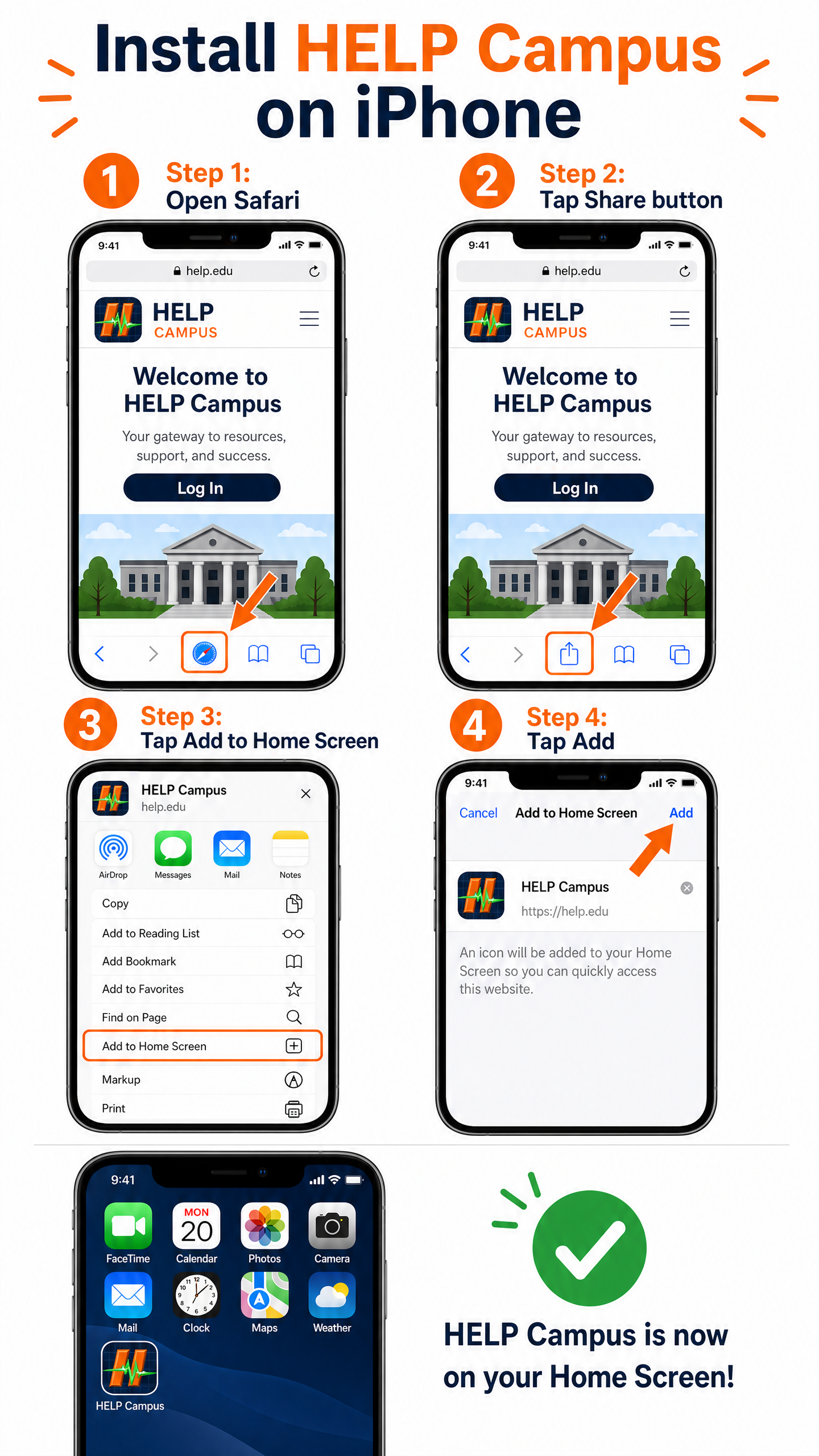
Open the website in Safari
Go to manus.tempurl.host in Safari (the browser that comes with your iPhone — it has a blue compass icon).
Tap the Share button
Look at the bottom of your screen. You'll see a square icon with an arrow pointing up out of it. Tap that button.
It's in the bottom toolbar, usually in the middle.
Scroll down and tap "Add to Home Screen"
A menu will slide up from the bottom. Scroll down in that menu until you see "Add to Home Screen" with a plus (+) icon next to it. Tap it.
Tap "Add" in the top right corner
You'll see a screen that says "Add to Home Screen" at the top. The app name will be shown. Just tap "Add" in the top right corner. That's it!

You're done!
Look for this icon on your home screen. Tap it to open HELP Campus.
Important: You must use Safari for this to work. It will NOT work in Chrome or other browsers on iPhone.
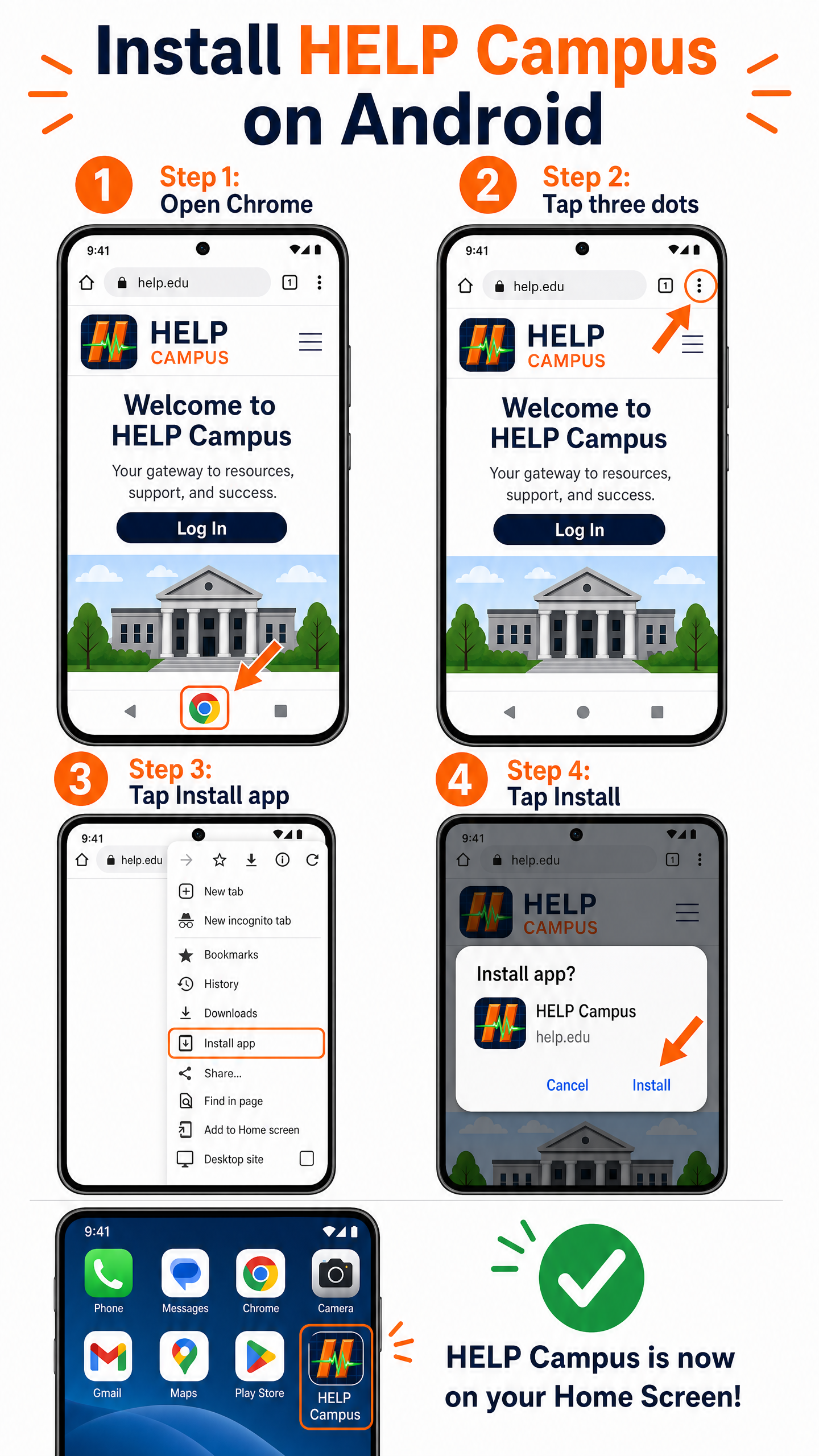
Open the website in Chrome
Go to manus.tempurl.host in Chrome (the browser with the colorful circle icon).
Tap the three dots
Look at the top right corner of your screen. You'll see three vertical dots (⋮). Tap those dots.
Tap "Install app" or "Add to Home screen"
A menu will drop down. Look for "Install app" or "Add to Home screen" and tap it.
The wording depends on your phone, but it's the same thing.
Tap "Install"
A small box will pop up asking you to confirm. Tap "Install". That's it!
You're done!
Look for this icon on your home screen. Tap it to open HELP Campus.
Important: You must use Chrome for this to work. It will NOT work in Samsung Internet or other browsers.